
routess on your phone
How the interface works on small screens.
On a phone the map stays full-screen and the desktop side panel becomes a bottom sheet.
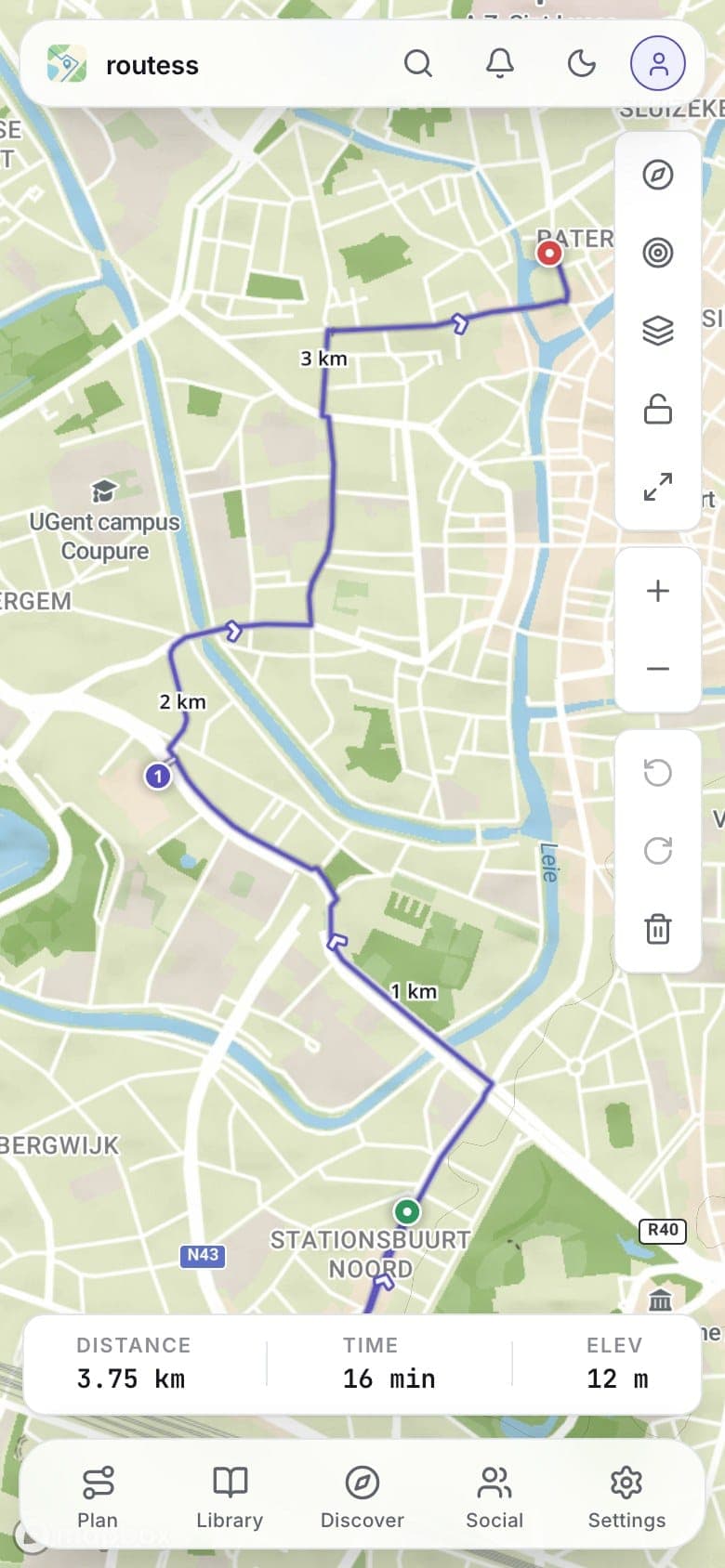
Top bar
The bar across the top holds search, notifications, the dark-mode toggle, and your account.
Bottom tab bar
The tabs along the bottom switch between Plan, Library, Discover, Social, and Settings, the same panels as the left rail on desktop. Tap the active tab again to collapse its sheet and get the full map back.
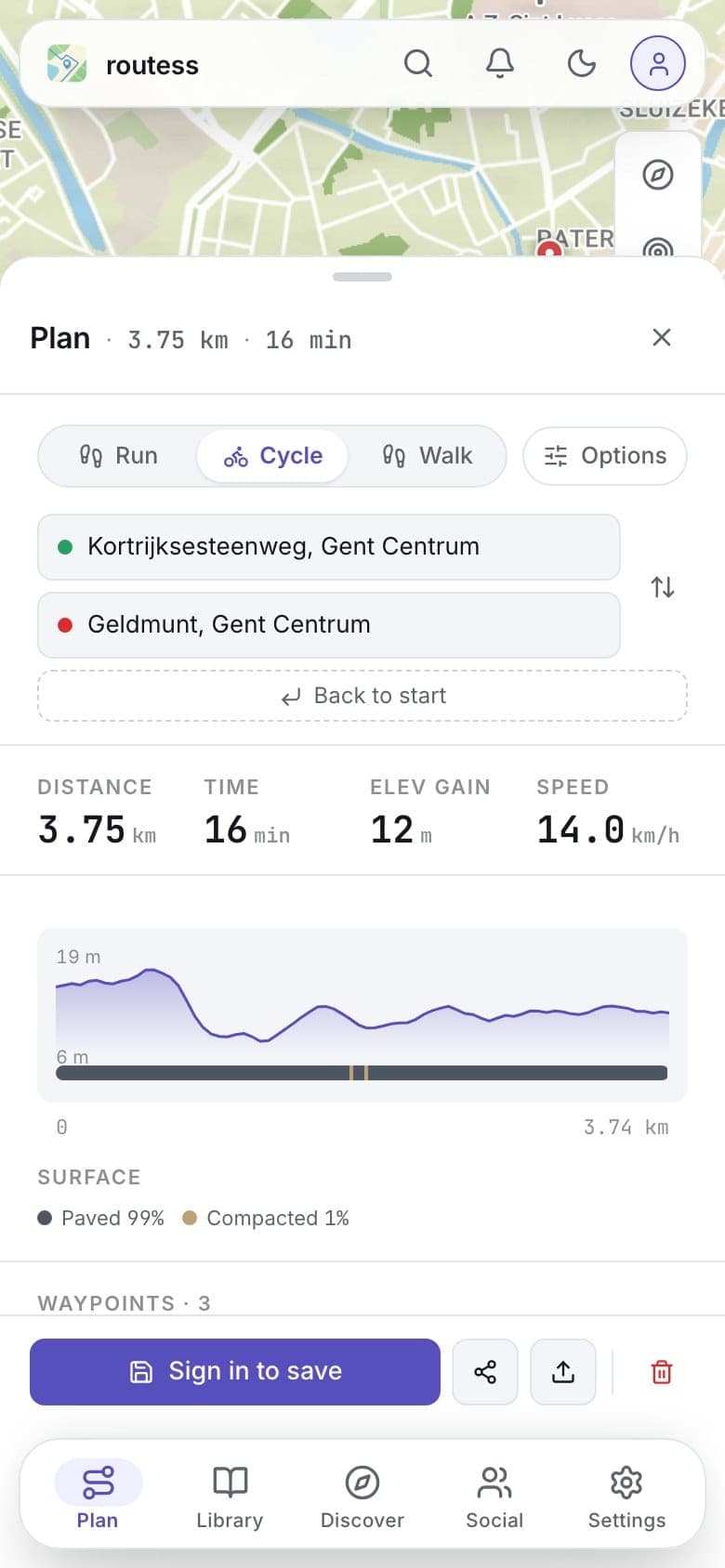
The bottom sheet
Panels open as a sheet over the map. Drag it up for the full panel (waypoints, elevation, stats) or down to keep just a peek while the map takes the screen.
Editing gestures
Route editing on touch screens has its own gesture grammar, built so the map never grabs a waypoint you didn't mean to touch:
- Tap empty map: add a waypoint
- Tap a waypoint: open its popup, with delete
- Long-press a waypoint: lift it (the marker grows), then drag it to a new spot
- Long-press the route line: insert a new waypoint there and drag it right away
- Long-press empty map: add a direct (straight-line) waypoint
- Drag a lifted waypoint to the trash zone at the bottom of the map to delete it
Moving your finger immediately always pans the map; pinch zooms and a two-finger twist rotates. To reorder waypoints in the plan sheet, press and hold a row's grip handle, then drag.
For using routess out on the trail with a flaky connection, see Offline & installing the app.