
Getting Started
Signing in
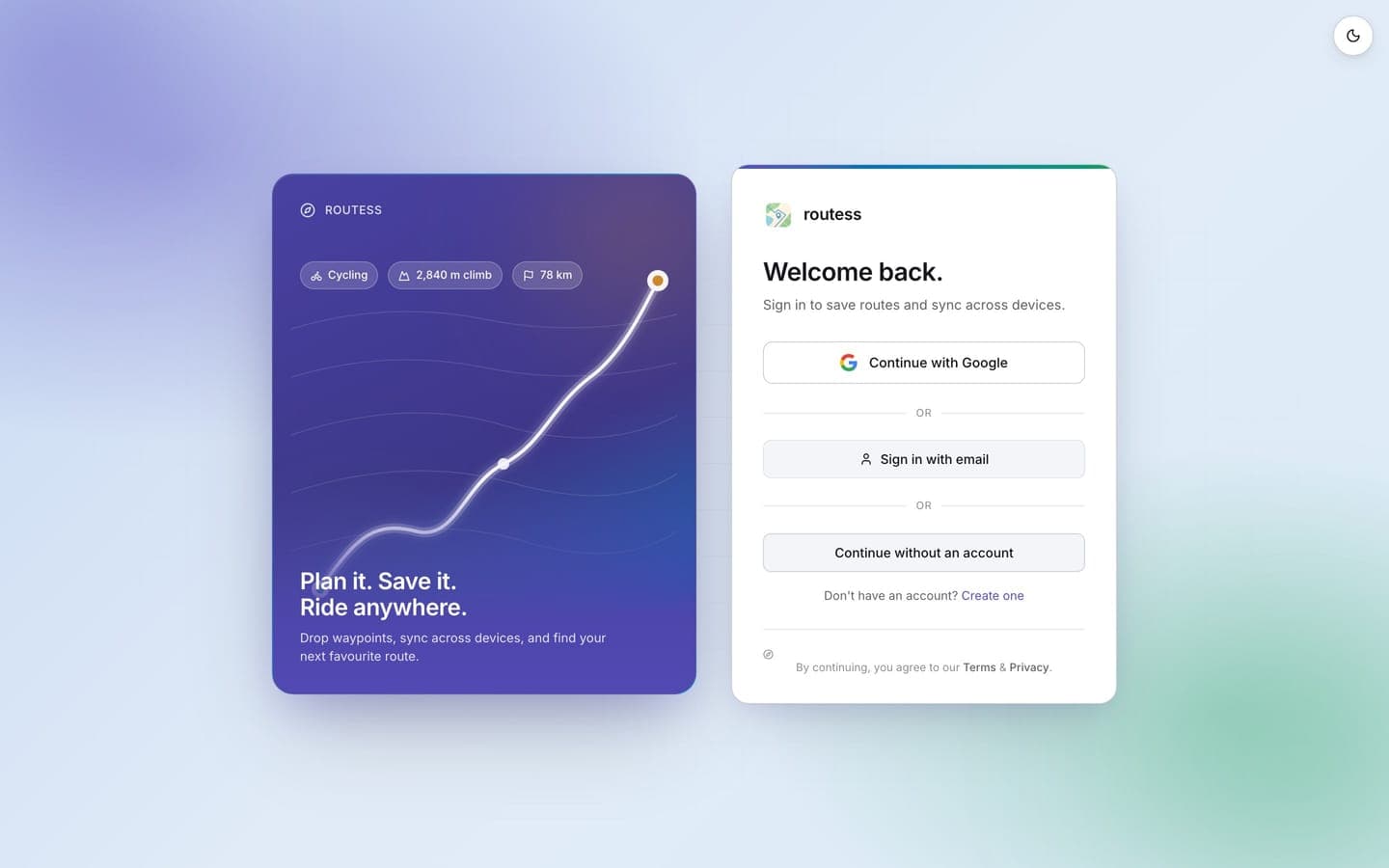
Sign in to routess with Google or with email and password.
You can sign in to routess with your Google account or with an email and password.
Sign in with Google
- Open routess and click Sign in with Google in the top right.
- A Google popup appears. Pick the account you want to use.
- Approve the requested permissions.
- You're back in routess, signed in.
What routess can see
- Your name and profile picture
- Your email address (to identify your account)
That's it. routess never reads your Gmail, Drive, or Calendar.
Sign in with email
- Click Sign in with email on the sign-in screen.
- To create an account, choose Create an account, enter your email and a password, and confirm the verification link routess emails you.
- To sign in later, enter the same email and password.
Forgot your password? Use Send reset link on the sign-in screen and follow the email.
If you signed up with Google, you can add a password later under your profile settings, so both methods work for the same account.
Signing out
Open the menu in the top right and click Sign out. Your routes stay saved on the server and reappear next time you sign in.