
Getting Started
Interface tour
A quick tour of the routess interface.
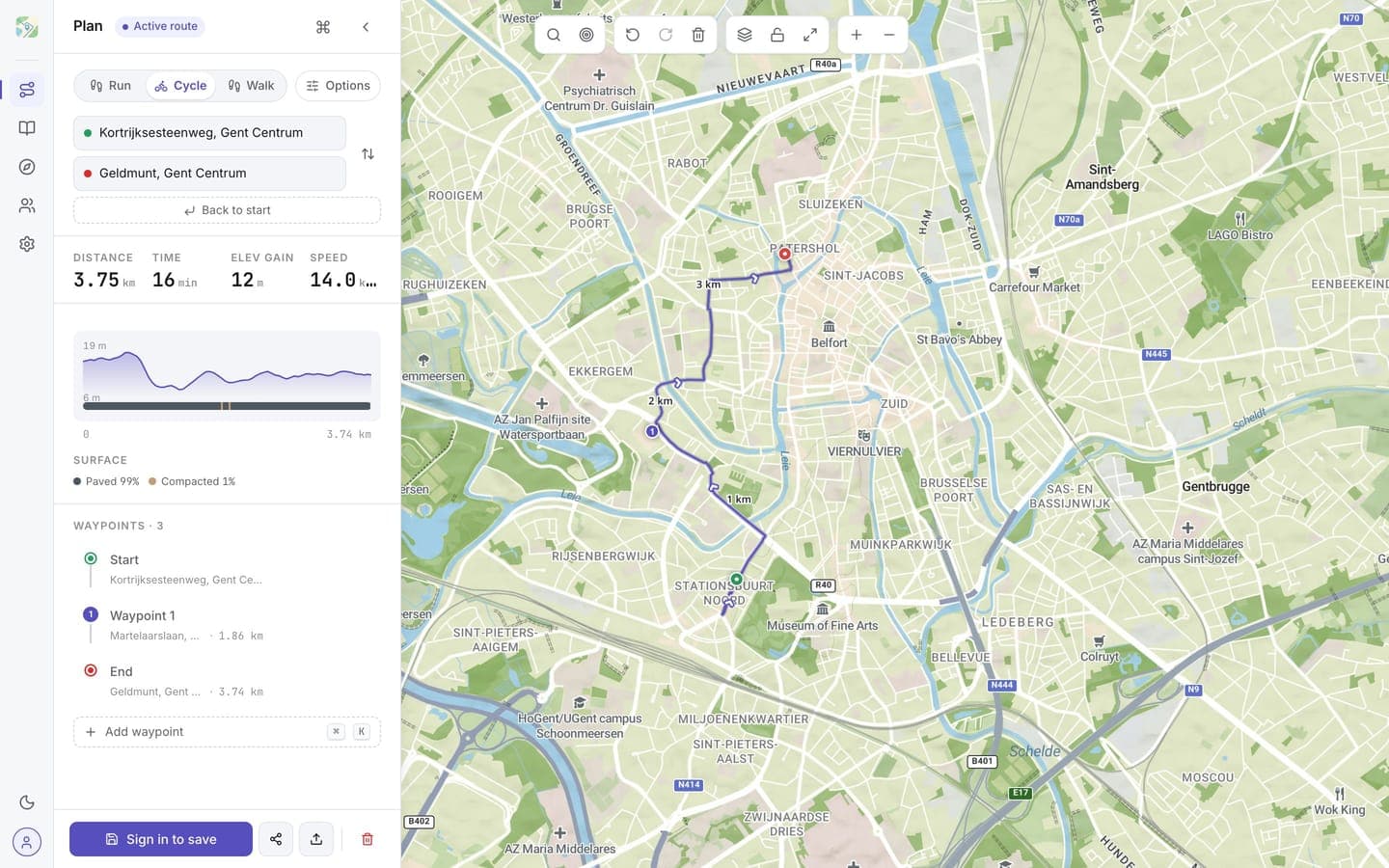
The map
Takes up most of the screen. Pan by dragging, zoom with scroll or the + / - buttons in the map toolbar.
The left rail
The icon column on the far left switches between panels:
- Plan: the route you're building
- Library: your saved routes and collections
- Discover: public routes from the community for the area you're looking at
- Social: your feed, inbox, and the people you follow
- Settings: sports, units, language, map and privacy options
At the bottom of the rail: notifications, the dark-mode toggle, and your account.
The plan sidebar
Shows your current route: the activity tabs (Run, Cycle, Walk), the From and To endpoints with place names, the numbered waypoints in between, total route stats, and the elevation and surface chart. Click a waypoint to focus the map on it. The Save, share, and import buttons live at the bottom.
The map toolbar
Across the top of the map:
- Search: find a place and jump the map to it
- Generate a loop: round-trip suggestions from a start point and a distance
- Center on me: center the map on your location (asks for permission the first time)
- Undo / Redo: step through your edits
- Remove route: clear the current route
- Map style, Lock map, Focus on route, and zoom
+/-
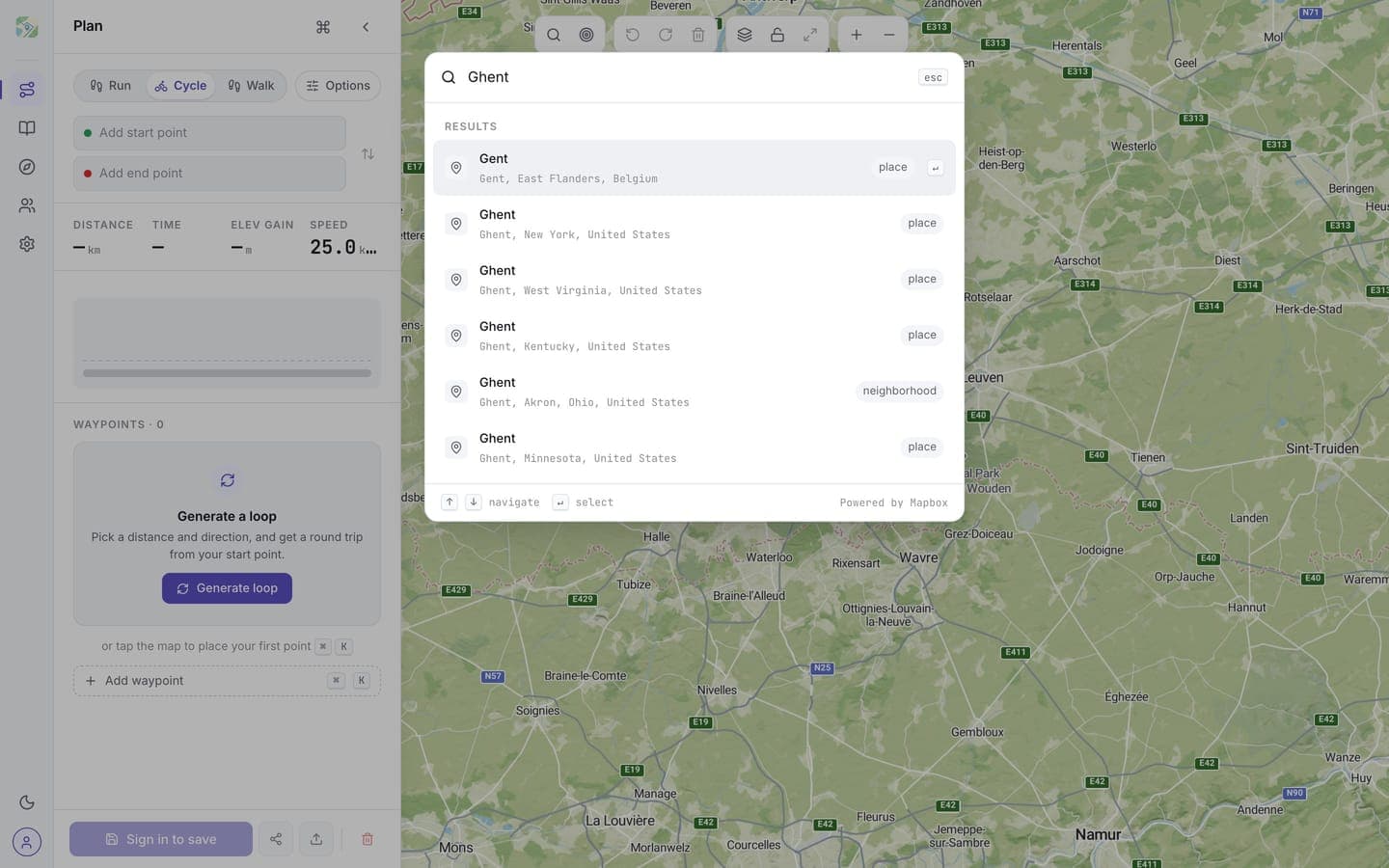
Read on for creating routes.