
Social
Sending routes to people
Share a route directly with another routess user.
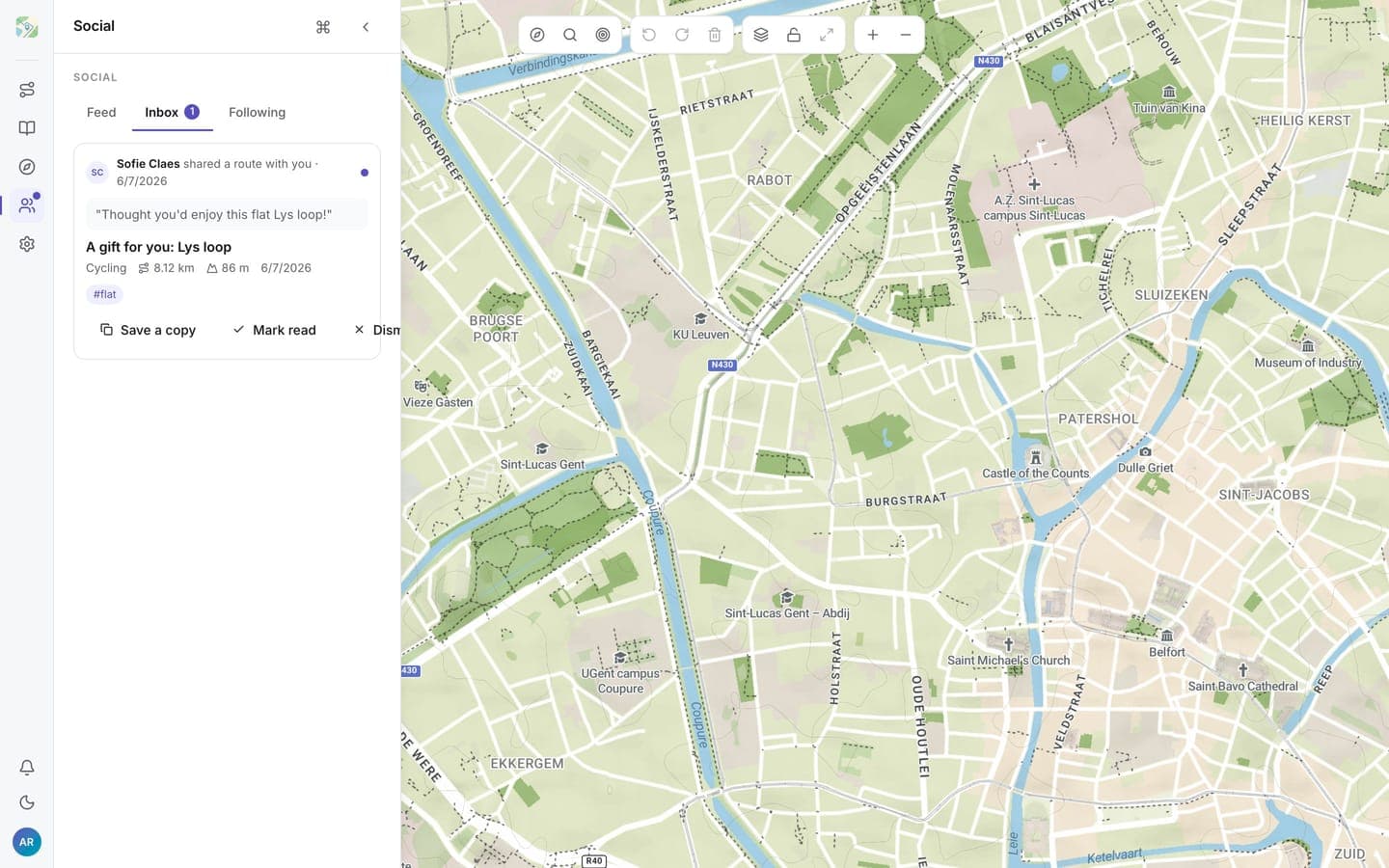
Besides share links, you can send a saved route straight to another person on routess. It lands in their Inbox in the Social panel.
Send a route
- Open the route's share options (from the plan panel or the route's detail panel).
- Pick Send to a person and search the recipient by name or handle.
- Optionally add a short message.
- Send.
Only unlisted and public routes can be sent. If the route is private, routess says so and offers Make unlisted & send, which flips the visibility in the same step.
Your inbox
The Inbox tab shows routes people sent you, with an unread badge on the Social icon. For each entry you can:
- View the route on the map
- Save a copy into your own library; your copy is private and fully yours
- Mark it read, or remove it
An inbox entry is a live reference, not a snapshot: if the sender later makes the route private or deletes it, the entry stops being viewable. Save a copy if you want to keep it for good.