
Sharing routes
Share a route with a link or through native share targets.
Click Share in the route sidebar, or open a saved route and click its share button, to bring up the share modal.
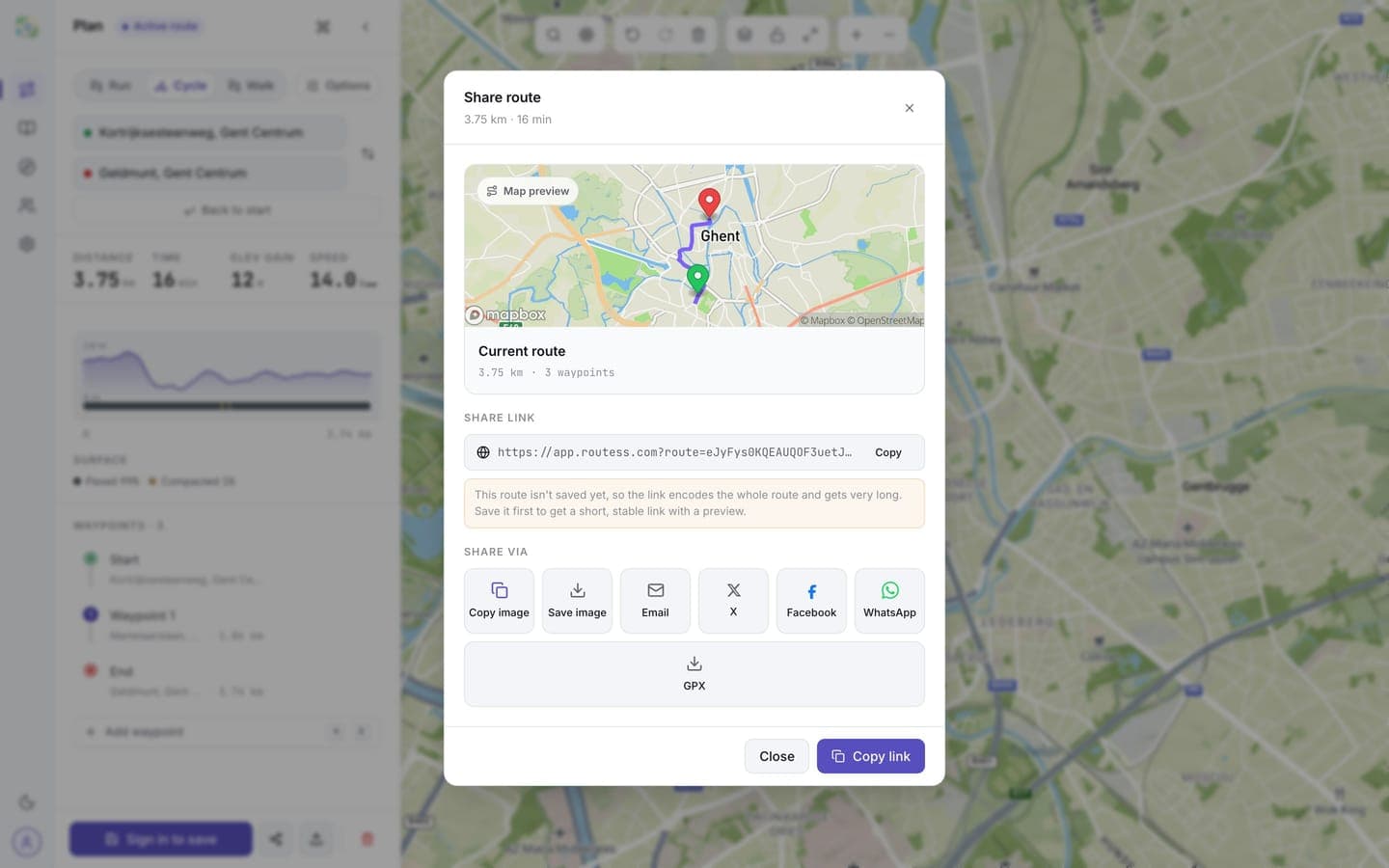
What's in the modal
- Copy link: copies a link to your clipboard. The route itself is encoded in the link, so it always reflects the route as it was when you copied it.
- Native share: on mobile, this opens your phone's share sheet (WhatsApp, Messages, Mail, etc).
- Share targets: send the route directly to email, WhatsApp, Facebook, or X.
- Export GPX: download the route as a GPX file instead of sharing a link.
- Preview: a map thumbnail and the route stats, so the person you send it to knows what they're getting.
What the recipient sees
Anyone who opens the link sees the route loaded in the planner: the path on the map, the stats, and the elevation and surface chart. They don't need an account to view it, and they can export it as GPX. To save a copy into their own library, they'll have to sign in.
Send a route to a person
If the recipient is on routess, you can skip the link and send a saved route straight to their inbox in the Social panel: pick Send to a person, search them by name or handle, and add an optional message. See Sending routes to people.
Public route pages
Saved routes that are unlisted or public also get a standalone web page with the map, stats, and a GPX download, which is what link previews in chat apps point at. Public routes can additionally show up on your profile, in Discover, and in search engines; unlisted ones stay reachable only through the link.
Visibility: private, unlisted, public
Saved routes have a visibility setting, chosen when you save and changeable later:
- Private: only you can see it in your library.
- Unlisted: anyone with the link can view it.
- Public: visible to anyone.
You can set a default for new routes under Settings → Routing defaults → Default visibility. Sharing a link from the share modal does not change a route's visibility, because the link carries the route data itself.