
Editing routes
Endpoints, reordering, deleting, undo, redo, and editing saved routes.
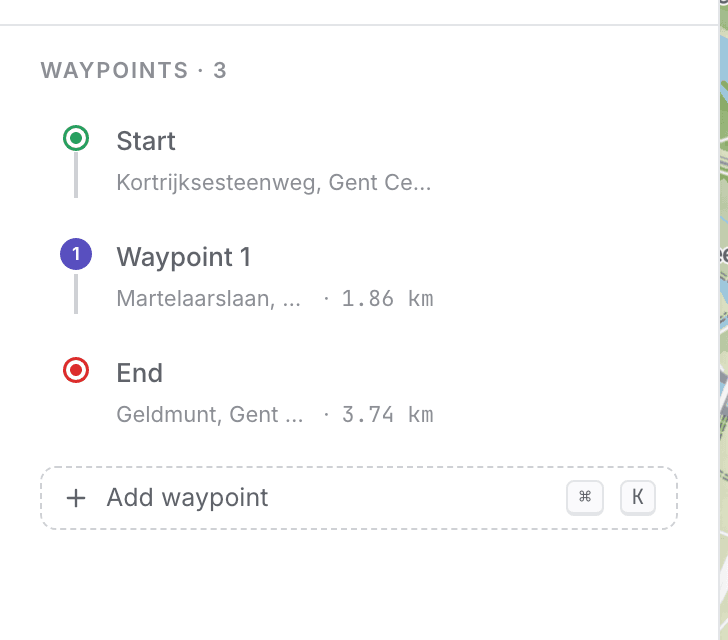
Endpoints
The sidebar starts with your From and To rows, shown as place names rather than coordinates. Click either one to replace it via search, and use the swap button between them to reverse the whole route's direction.
When your route starts and ends in the same place, the two rows collapse into a single Loop from … row. Not a loop yet? Back to start adds a final leg home in one click.
Numbered waypoints
The waypoints between the endpoints are numbered, and the same numbers appear on the map markers, so the list and the map always line up. Each row shows the distance along the route to that point.
Reorder
Drag a waypoint marker on the map, or drag a row by its grip handle in the sidebar. The route updates as you drop.
Delete
Right-click a waypoint on the map (or tap it on touch screens) to remove it. The route reroutes around the gap. Row actions in the sidebar appear when you hover a row.
Hover sync between sidebar and map
Hover a waypoint in the sidebar to highlight it on the map, and hover a marker on the map to highlight its row in the sidebar. This works in both directions, which is handy when a long route has many waypoints.
Undo / Redo
- Undo: click the undo button or press
Ctrl/Cmd + Z - Redo: redo button or
Ctrl/Cmd + Shift + Z
routess keeps your full edit history for the current session.
Edit a saved route in place
Open a route from your library and edit its name, description, visibility, or waypoints directly. An "Unsaved changes" indicator appears next to the title while you have pending edits. Click Save to commit, or Discard to revert to the last saved version. If you navigate away with unsaved changes, routess prompts you first.
Reset
Click Reset to clear the current route entirely. This is undo-able right away, useful if you cleared by accident.
Editing on a phone works differently; see routess on your phone.